OEE IntelliSuite · administrator guide
Connect Microsoft Entra ID
Register one Microsoft application for the suite sign-in broker, map Entra groups to suite roles, and verify access across Pulse and Explorer.
Before you start
This guide is for an Azure / Entra administrator and the person managing the suite deployment.
The suite must have authentication and its shared sign-in broker enabled. Obtain the
deployment's public HTTPS broker origin, for example
https://auth.plant.example.com, and coordinate configuration changes with the
suite operator.
The broker receives Microsoft sign-in once and shares the session with configured suite applications. Explorer is a separate OIDC client of the broker; it does not require a second Microsoft registration. The broker, app origins and Explorer origin must be under the configured cookie domain, with the edge routing the broker hostname to Pulse. The suite deploy configuration must use one shared authentication secret across the enabled apps.
1 · Register the application
- In Microsoft Entra admin center → App registrations → New registration, register a web application in the tenant that owns your users. Select Accounts in this organizational directory only (single tenant). Record the Application (client) ID and Directory (tenant) ID. Microsoft registration instructions
-
Under Authentication, add a Web platform redirect URI,
using the exact public broker origin:
The origin must match the deployment, including any port. Add a separate exact URI for each environment that uses this registration; prefer separate registrations and credentials for separate environments. Microsoft redirect URI ruleshttps://auth.plant.example.com/api/auth/callback/microsoft - Under Certificates & secrets → Client secrets, create a secret and capture its value immediately in your approved secret store. Supply it securely to the suite operator and record an expiry and rotation owner. The current suite Microsoft provider accepts a client ID and client secret; an Entra certificate credential is not a drop-in replacement for this configuration. Microsoft credential instructions
- Apply your tenant's consent, guest, MFA and Conditional Access policies. A single-tenant registration can include guests admitted to that tenant. Test with the intended policy and accounts; app registration alone does not grant every user suite access.
2 · Configure groups and roles
Create or choose Entra security groups for the suite roles and record each group's
Object ID, not its display name. In the app registration, configure group
claims so the ID token contains a groups array of Entra group
object IDs. For example, choose Security groups in the group-claim
configuration; do not emit groups as roles or substitute names, SIDs or on-premises
attributes. Verify the resulting token for a test user.
Microsoft group-claim configuration
| Suite role | Typical access |
|---|---|
viewer
|
Read-only access to devices, jobs and reports. |
employee
|
Basic access, including job punches. |
supervisor
|
Team and operational management, reports and exports. |
admin
|
Full suite administration, including users and system settings. |
These are suite roles. The current integration maps group IDs in suite
configuration; it does not read the Entra roles claim. Defining Entra app roles
or assigning a group to an Entra app role alone will not grant the corresponding suite role.
The supported path is group membership → ID-token groups → suite mapping.
Microsoft app roles reference
3 · Configure the suite
Give the suite operator the tenant ID, client ID, secret through an approved secret channel,
and the group Object ID → role mapping. In the deployment's client configuration, these values
belong in the broker's Pulse env-vars. The broker configuration itself is
deployment-owned; do not hand-author its derived AUTH_BROKER_JSON.
MICROSOFT_TENANT_ID=<tenant-uuid>
MICROSOFT_CLIENT_ID=<application-client-id>
MICROSOFT_CLIENT_SECRET=<secret-value>
AUTH_MICROSOFT_GROUP_ROLES_JSON={"aaaaaaaa-aaaa-4aaa-8aaa-aaaaaaaaaaaa":"viewer","bbbbbbbb-bbbb-4bbb-8bbb-bbbbbbbbbbbb":"admin"}
The map must be a nonempty JSON object of distinct group UUIDs and exact lowercase role names.
The tenant setting must be the same single tenant's UUID. Mapping is opt-in: if
AUTH_MICROSOFT_GROUP_ROLES_JSON is absent, existing Microsoft sign-in behavior
remains and the unmapped-group refusal described here does not apply. The operator applies the
configuration using the normal deployment process, then verifies the broker.
viewer → employee → supervisor → admin.
Review overlapping membership before granting access.
4 · Grant and verify access
- Add each intended user to a mapped security group. If the enterprise app requires assignment, assign the user or eligible group there as well. Enterprise-app assignment and the suite's group-to-role map are separate checks.
-
Open the suite sign-in page and select Continue with Microsoft.
Authenticate with the tenant account and satisfy any tenant MFA or consent prompts. A new
mapped Microsoft identity can be created on first sign-in even if
AUTH_DISABLE_SIGN_UP=true. - Check the user's role and expected access in Pulse, then open Explorer from Pulse and verify the intended dashboard and access. A user with no mapped group, a missing or malformed group claim, a foreign tenant or an overage response is refused rather than given a default role.
- Test an unmapped user, an overlapping-group user and an existing user as well as a new user. For an unlinked existing local account, the existing suite role must already match the mapped role for linking. Single-tenant email linking trusts the tenant's identity and guest admission controls; verify those controls are appropriate before relying on it.
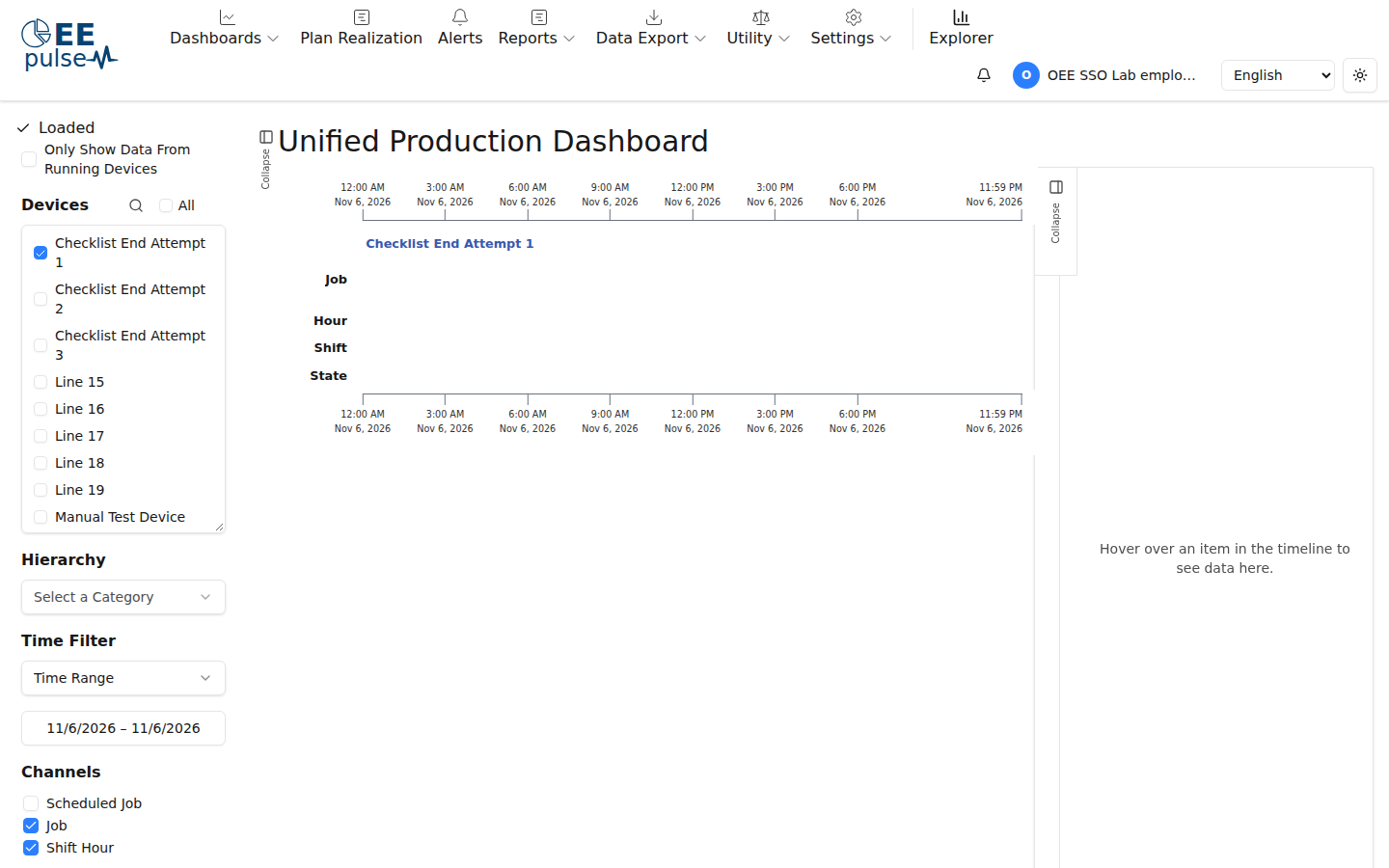
For the end-user sign-in experience, see the Microsoft single sign-on user guide.
Operations & troubleshooting
- Role change or removal: the suite refreshes a linked Microsoft user's role at the next Microsoft sign-in. When the role changes or the user is unmapped at sign-in, database sessions are removed; signed session caches can remain valid until expiry. This is not an immediate directory-driven revocation guarantee. Use your incident access controls and session-revocation procedures when urgency requires them.
-
Sign-in refused: inspect tenant and enterprise-app assignment, user
membership, the exact mapped object IDs and the ID token's
tid,oidandgroupsclaims. Check for group overage and whether assigned-group filtering requires direct membership. Treat tokens as sensitive and do not paste them into support tickets. - Redirect error: compare the registered Web redirect URI character for character with the broker's public origin and callback path; verify HTTPS routing and the configured client and tenant IDs.
-
Existing account does not link: check the mapped role against the existing
suite role and the account's email. When Microsoft does not return email, the broker may use
preferred_usernameas an unverified sign-in name. Resolve account ownership with the suite administrator before changing a role or linking identities. - Rotate credentials: create a replacement client secret, update the suite's secure deployment configuration, apply it and verify sign-in before removing the old secret. Track expiry and do not expose its value in logs.
References
Microsoft Learn pages checked 9 November 2026. Product details reflect the suite broker and group-role implementation; the SSO lab verified mapped and unmapped examples on 6 November 2026.
- Register an application · supported accounts and tenant registration
- Redirect URI restrictions · web callback registration
- Add application credentials · secrets and certificates
- Configure group claims · ID-token groups, filtering and limits
- Assign users and groups to an enterprise app · assignment, nested groups and licensing
- ID-token claims reference · group overage
- App roles · distinction between app roles and group claims